Create Projects and Manage Project Templates
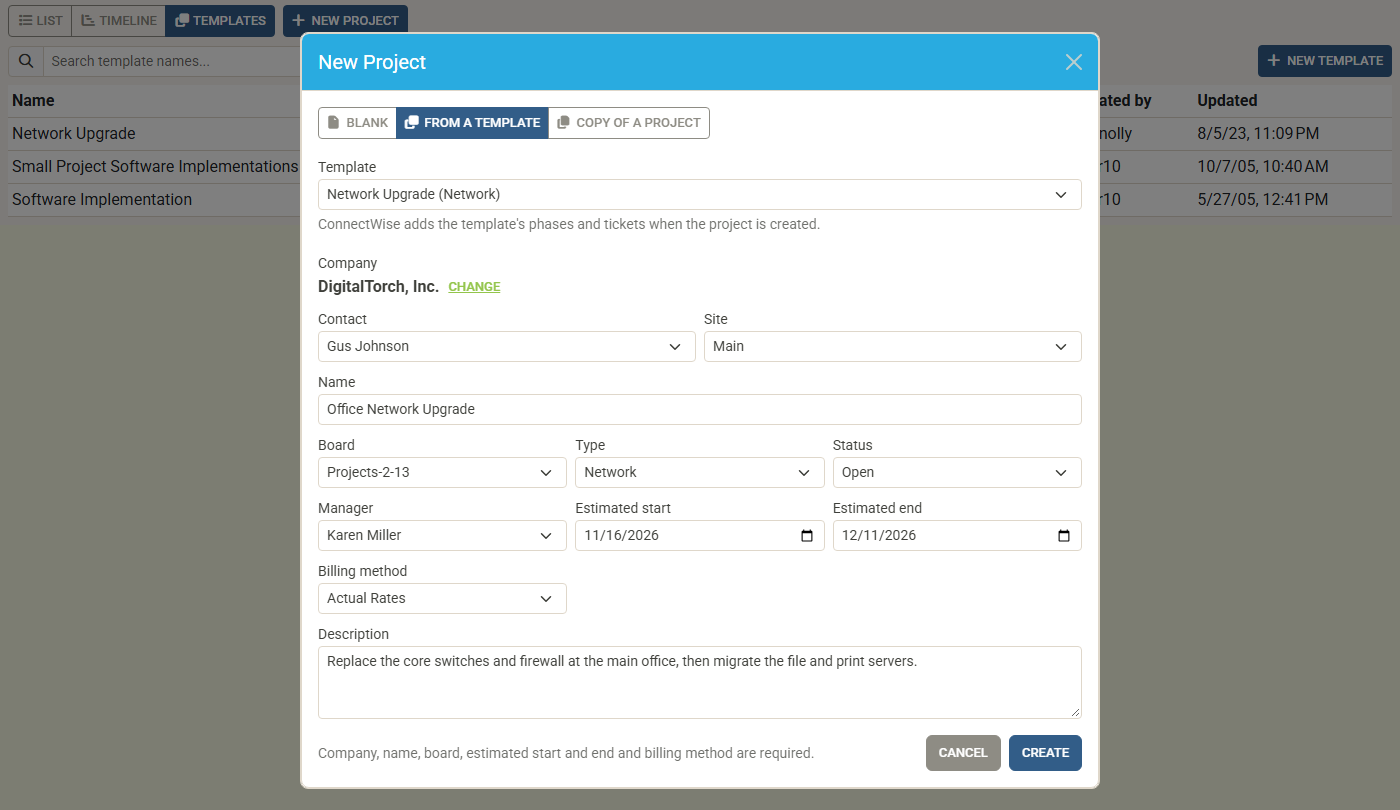
New Project, in the Projects tab and the toolbar’s Projects dialog, starts a project without leaving MTX. Start it blank, from one of your ConnectWise project templates, or as a copy of a project you can see. The new project opens in its own tab.
- From a template, ConnectWise creates the template’s phases and tickets with the project, and the template’s type is filled in for you.
- A copy starts with the other project’s company, contact, site, board, type, manager, billing method and description; you give it a name and dates. Its phases and tickets are copied with their budget hours, durations, predecessors and lag. Check the options to also copy its team members and contacts. If a step of the copy doesn’t succeed, MTX lists what was copied and what wasn’t.
On a project’s Work Plan, Apply Template adds a template’s phases and tickets after the ones the project already has. MTX tells you how many it will add before you confirm. On its Overview, Save as Template turns the project’s phases and tickets, with their budget hours, into a new template.
The Templates view, beside List and Timeline in the Projects tab, lists your project templates with a name search. Create, rename or delete a template, and edit its work plan:
- phases and sub-phases;
- tickets, with summary, notes, budget hours, duration, work role, work type, priority, predecessor and lag;
- each ticket’s tasks.
These options follow your ConnectWise security role for projects and project templates.