
Ask about a ticket
You ask Support Advisor from the ticket in MTX. It reads the ticket as it stands, searches your company’s indexed history for similar tickets, and answers in the ticket’s Support Advisor tab.
Where to find it
Section titled “Where to find it”- Working a ticket: the Support Advisor tab beside the ticket’s notes. On a narrow screen, the Advisor button in the bar below the ticket opens it.
- Anywhere else: open the ticket’s summary and select the Support Advisor tab.
The tab is there only on tickets Support Advisor covers: its board is on, Support Advisor is ticked on it, and its company is not excluded. If you see no tab, see Troubleshooting.
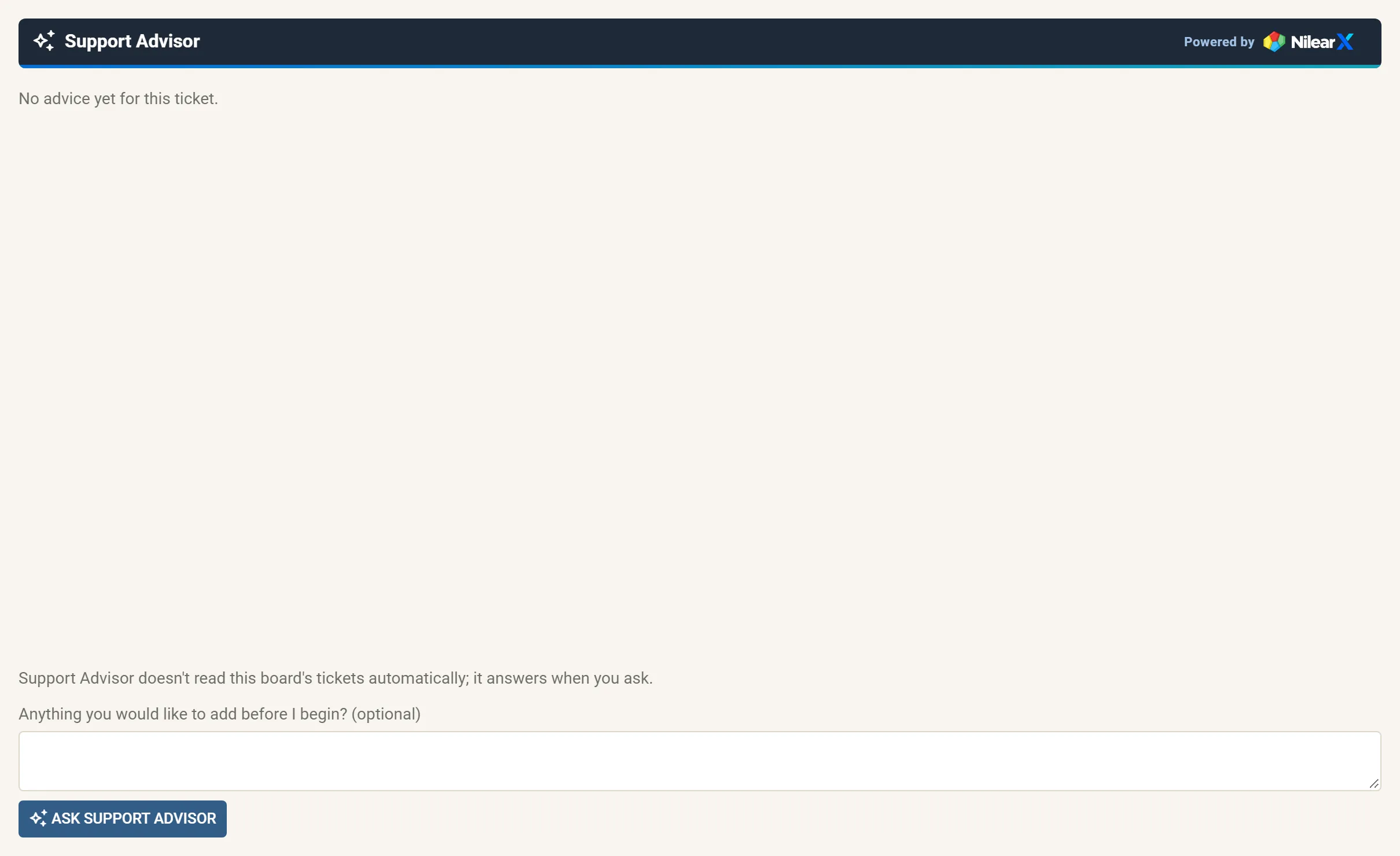
- In the Support Advisor tab, under Anything you would like to add before I begin? (optional), add anything that is not in the ticket yet: what you found on a call, what you already tried. Or leave it empty.
- To show Support Advisor something on your screen, such as the error a customer sees in a remote session, attach images: paste a screenshot into the box, drag one onto it, or click the paperclip. Each shows as a thumbnail under the box, with an × to remove it.
- Click Ask Support Advisor. You can ask with images and no text.
While it works, the tab shows Support Advisor is answering…, and everyone who opens the ticket sees that you asked. When the answer arrives it opens in the tab. See Read the advice.
If the board reads tickets automatically, the advice may already be there when you open the tab, with Support Advisor read the ticket at its top. You can still ask.
What Support Advisor reads
Section titled “What Support Advisor reads”It reads the ticket’s board, summary, company, Type, SubType and Item, and its conversation and open tasks, each entry cut to 2,000 characters. Screenshots in the conversation are read too, as information about this ticket. When the advice depends on something an image shows, such as a file name, a path or an error code, it writes it out rather than pointing at the image. Earlier advice is not sent again.
Images you attach are read first, as information you are giving about this ticket. They are read with that one message only: they are not kept, not shown to anyone else, not sent again with a follow-up, and never added to the ticket. Everyone who opens the ticket sees that your message had images, but not the images. Support Advisor never recommends a fix just because an image shows it.
It searches the history of the companies you can see in ConnectWise (member visibility), and never cites the ticket you are asking about as its own evidence.
Good to know
Section titled “Good to know”- Support Advisor does not look up a particular ticket, such as “the ticket where we offboarded Sam”. It searches your history for tickets like the one you are asking about, by their problem, and people’s names are left out of that history. Asked to find one, it says so; find the ticket in ConnectWise’s ticket search instead.
- One ask at a time: you cannot ask again in the same conversation while an answer is on its way.
- Your message can be up to 1,000 characters, with up to 4 images of up to 5 MB each, in PNG, JPEG, GIF or WebP. Large images are shrunk before they are sent.
- An ask that has not been answered after five minutes shows This ask did not complete. You can remove it and ask again.
- Asking needs at least read-only access in Nilear.
- The answer is shared: everyone who opens the ticket sees it. Nothing is written to ConnectWise until someone acts on it.
Next: focus on one task or give direction, or ask a follow-up.