
Add your AI key
Ticket Automation runs on your company’s own AI key, and is billed to your company’s account with the key’s provider. So does Support Advisor. The key can be an OpenAI key or an Anthropic (Claude) key: choose the provider your company already pays. Without a working key, no board’s automations run. You need the Admin access level.
Choose the provider
Section titled “Choose the provider”On the AI Key page, choose OpenAI or Anthropic above the key box. The instructions on the page follow your choice. Your company has one key at a time: a key of the other provider replaces the stored one, and the page says so before you save (“The Anthropic key will replace the stored OpenAI key.”).
Everything moves to the new key’s provider: every board automation, Support Advisor, the Ticket AI buttons in MTX and Client Mapper’s map builder. On Anthropic, the quick calls run on Claude Haiku and Support Advisor’s advice and web research on Claude Sonnet.
Create an OpenAI key
Section titled “Create an OpenAI key”The card How to create an OpenAI key for NilearX gives the steps in full. In short:
- At platform.openai.com, sign up or sign in with a company address you will keep, such as a shared IT or admin mailbox.
- In the billing settings, add a payment method, buy prepaid credit, and turn on auto-recharge. Without it, automation and Support Advisor stop the moment the credit runs out.
- Create a project just for Nilear, and in it a secret key owned by a Service account, with Expiration: Never. A key that expires stops automation on the day it expires. If you restrict its permissions, allow model requests (chat completions and responses).
- Leave Allow all models selected in the project’s model settings. Nilear moves to newer models as OpenAI releases them, and a project limited to selected models would stop working when it does.
- Set a monthly budget with email alerts. Adding your service desk’s email address as a recipient makes an alert open a ticket. A hard spending limit stops Nilear’s requests once reached, so if you set one, set it well above what you expect to spend.
Create an Anthropic key
Section titled “Create an Anthropic key”With Anthropic chosen, the card How to create an Anthropic key for NilearX gives the steps in full. In short:
- At platform.claude.com, the Claude Console, sign up or sign in with a company address you will keep, and name the organization after your company.
- In Billing, add a payment method, buy prepaid credit, and turn on auto-reload. Without it, automation and Support Advisor stop the moment the credit runs out.
- On the Workspaces page, create a workspace just for NilearX. In its Spend limits, add an email notification at an amount you want to hear about; your service desk’s email address makes the alert a ticket. A monthly limit stops NilearX’s requests once reached, so if you set one, set it well above what you expect to spend.
- On the API keys page, choose the NilearX workspace and create a key named for NilearX, from an account your company will keep. The Console shows a key only once, so copy it straight to the AI Key page.
Copy instructions for an AI assistant copies the chosen provider’s steps for Claude, ChatGPT or another assistant to walk you through one at a time. They tell the assistant never to ask for the key itself.
Add it
Section titled “Add it”- In Ticket Automation, open AI Key. (Older links to the OpenAI Key page open it too.)
- Choose the provider, paste the key in Add your key and click Verify and save.
- The key is checked with its provider before it is saved, which takes a few seconds and a few tokens on your account: that it is accepted, that it can make a billed request, and that it can use every model Nilear uses. A key that fails the check changes nothing. If a model is missing, the page names it: “Allow these models for the key: …”.
Once saved, Your key shows the key’s provider, its last four characters only, its Status (Working or Failing), when it was added and by whom, and when it was last verified. The page never shows the whole key again.
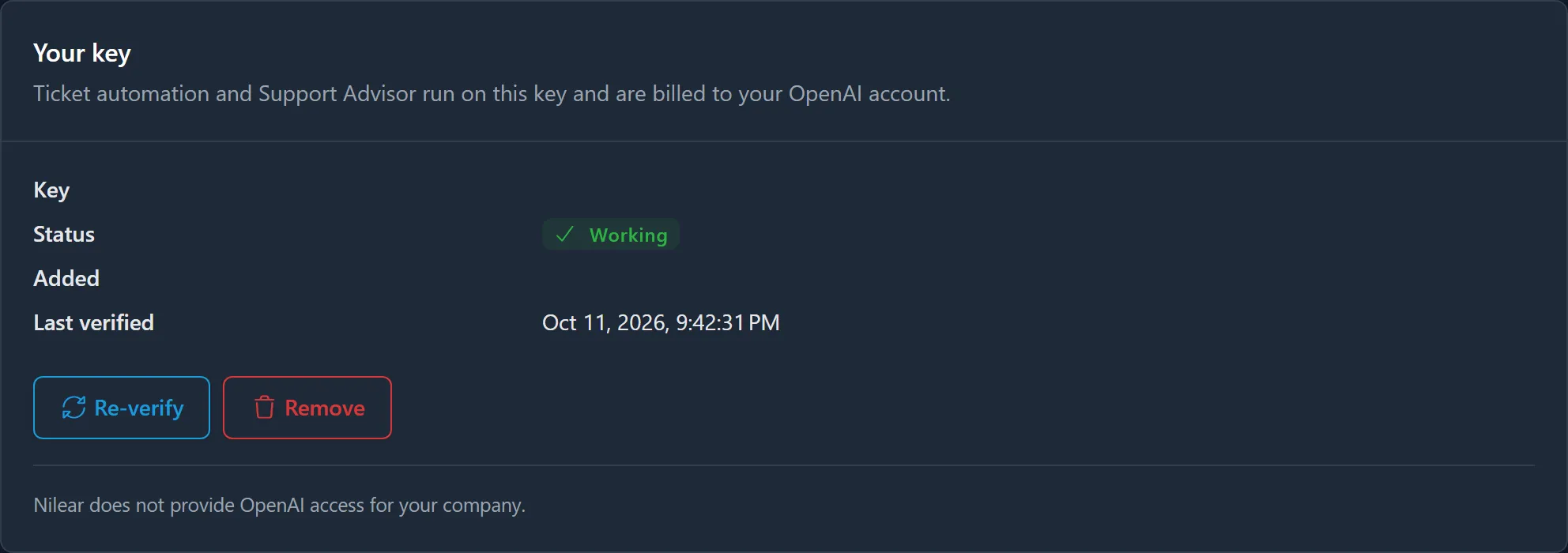
Boards start being automated within a minute of a working key being saved.
When the key fails
Section titled “When the key fails”A key is marked Failing when its provider rejects it as invalid, when the account has run out of credit or reached a spending limit, or when the key cannot use a model Nilear needs. A rate limit, a timeout or an outage at the provider does not mark it failing.
- Each active administrator is emailed once when the key starts failing, naming the provider, the reason and the key’s last four characters.
- Ticket automation and Support Advisor pause: the AI Key page says Ticket automation and Support Advisor are paused., and the Boards page warns that no board’s automations will run.
- Tickets that were waiting to be automated are closed without any change, and are not automated later when the key works again.
- Nilear re-checks a failing key every hour. Topping up the credit, in the OpenAI billing settings or the Claude Console’s Billing, is enough: the next check finds it working and automation restarts. Re-verify checks it at once.
To use another key, of either provider, choose the provider, paste the key in Replace the key and click Verify and save.
Remove it
Section titled “Remove it”Click Remove, then Remove the key. Ticket automation and Support Advisor stop within a minute and stay paused until a key is added. Manual Ticket AI features keep working.
What uses the key
Section titled “What uses the key”Every automation on your boards, Support Advisor, the Ticket AI buttons your technicians press in MTX, such as Polish and Split, and Client Mapper’s map builder. Without a working key, automation and Support Advisor pause, and those buttons keep working on Nilear’s key. See Your AI key.
Usage in the last 30 days, at the bottom of the page, counts every model call Nilear made for your company, by feature, and whose key paid for it.
The embeddings that make your ticket history searchable for Support Advisor are not made on your key: Nilear makes them on its own OpenAI key, at its own cost, whichever provider you choose.