
Switch a board on
Ticket Automation works only on boards you switch on, and runs only the automations ticked on each. You need the Admin access level.
Switch it on
Section titled “Switch it on”- In Ticket Automation, open Boards. Every service and project board in your ConnectWise is listed, a project board marked Project board. If a board you just created is missing, click Re-read boards from your PSA (the refresh button in the page header).
- Click the board’s name to expand it. Only one board is expanded at a time.
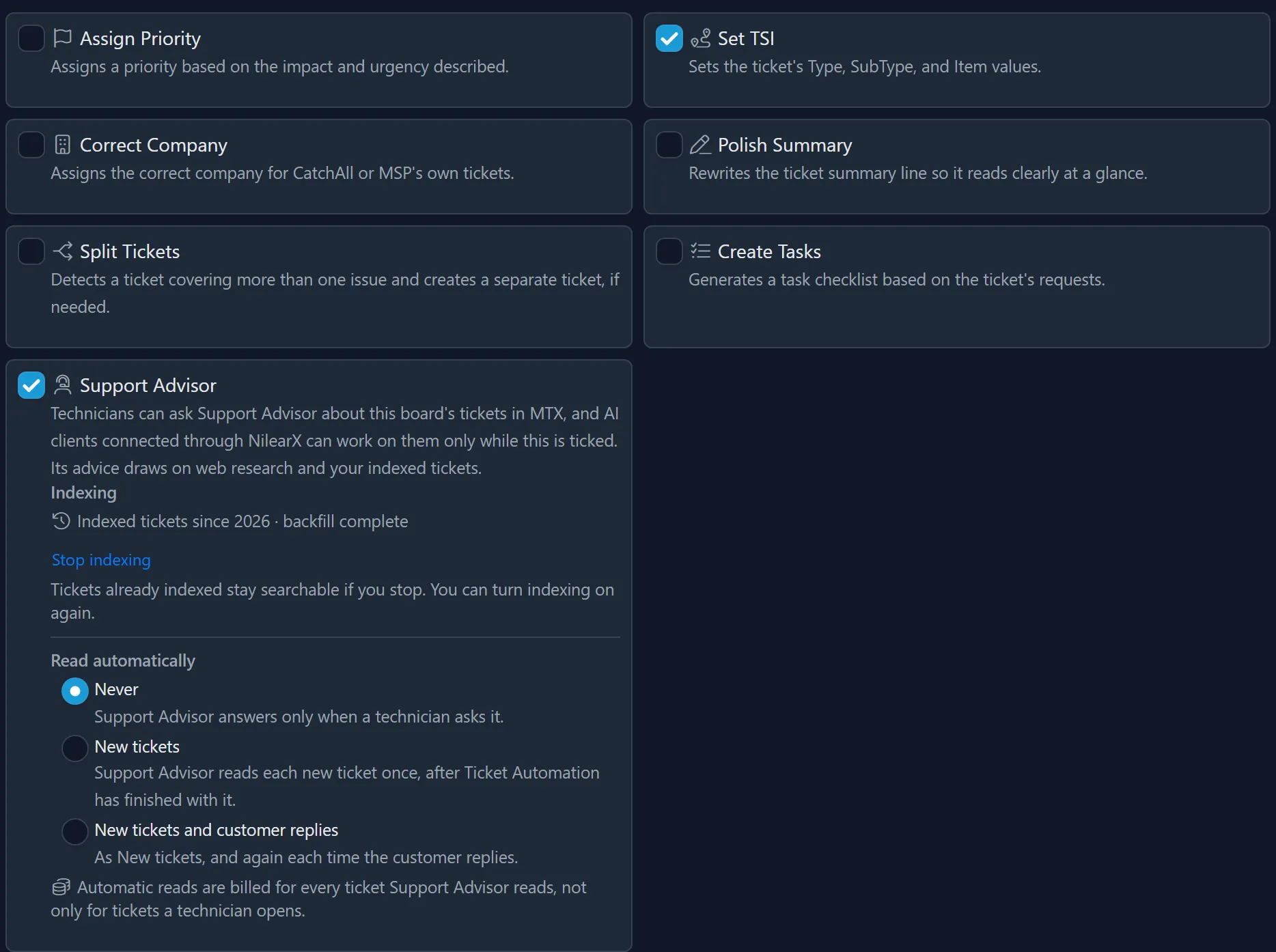
- Tick the automations you want. Each tick is saved at once, with a spinner on the row while it saves and a check mark when it lands.
- Choose Preview or Live (how). A board never given a mode is in Preview.
- Turn on the switch at the left of the board’s row. Its tooltip says what it controls: “Off keeps all AI off this board’s tickets, in MTX and AI clients too. On runs what is ticked below, Support Advisor included.”
The row then reads Preview or Live, its number of automations (“2 automations”, Support Advisor included), and its estimated monthly cost. The page header counts the boards that are on, such as “2 of 3 boards on”, with the total estimated cost of the boards that are on.
New tickets entered on the board from then on are automated. Tickets already on the board are not.
Set it up before switching it on
Section titled “Set it up before switching it on”You can tick automations, write instructions and choose the mode while the board is off, and switch it on when you are ready. An expanded board that is off says so:

Its row reads Off, and, when automations are ticked, which mode it will run in and how many are configured, such as “Preview when switched on · 2 configured”, with the estimated cost it would have.
A board on with nothing ticked
Section titled “A board on with nothing ticked”A board can be on with no automation ticked, reading “0 automations”. Nothing runs on its tickets, but because it is on, Support Advisor and AI clients are not blocked by the switch. Tick Support Advisor on it if technicians should ask about its tickets (how).
A project board
Section titled “A project board”A project board is switched on and set up like a service board, and its project tickets are automated the same way, with every automation except Correct Company and Split Tickets: a project ticket’s company comes from its project, and splitting is for service tickets. An expanded project board does not offer those two, and says why. If a project board’s settings still tick one of them, the board says it is ticked but not run on project boards, with Untick.
The AI also knows which project and phase a project ticket belongs to, and uses them only where your instructions name them, as it does the company or the board.
Untick an automation
Section titled “Untick an automation”Untick it. It stops from the next ticket: a ticket already waiting runs only the automations still ticked when it is processed. The board’s instructions for that automation are kept, and come back when you tick it again.
Switch it off
Section titled “Switch it off”Turn off the board’s switch. Nothing runs on the board’s tickets any more, not even Preview, and no AI is used on them, in MTX or AI clients: Support Advisor stops there too. The board keeps its automations, mode and instructions for when you switch it on again.
Boards that are no longer offered
Section titled “Boards that are no longer offered”A board your ConnectWise no longer returns, because it was deactivated or deleted, is listed under Not offered for automation when its settings are still on or hold automations, marked Still enabled when it is on, with Remove. Settings left behind by such boards that are off with nothing configured are counted in the footer, as Clean up 2 inactive leftovers for example, which removes them all after you confirm.